Creatives
In this section we can add the creatives, which you have previously uploaded in ‘Assets > Creatives’.
How can you add them?
- Click and open the ‘Show Library’.
- Creatives will be shown below in a short list. This is a quick way to preview all the creative data (name, state, type size, preview and bid).

- In order to find the ones you need you can filter by folder or creative name and add any additional filters if needed.

- Finally, once you filtered the creatives, you can add them individually or in bulk. For bulk simply click the ‘Add filtered’ button.
Did you forget to upload the creatives?

No need to worry if you forgot to upload the creatives during the line setup. You don't have to close the setup process. Simply click on the 'Go to the creative Assets and manage your creatives there' button, and it will open in a new window. Once you've uploaded the creatives, return to your original tab and click 'Refresh' in the library. This will update the library within the line, allowing you to select the recently added creatives.

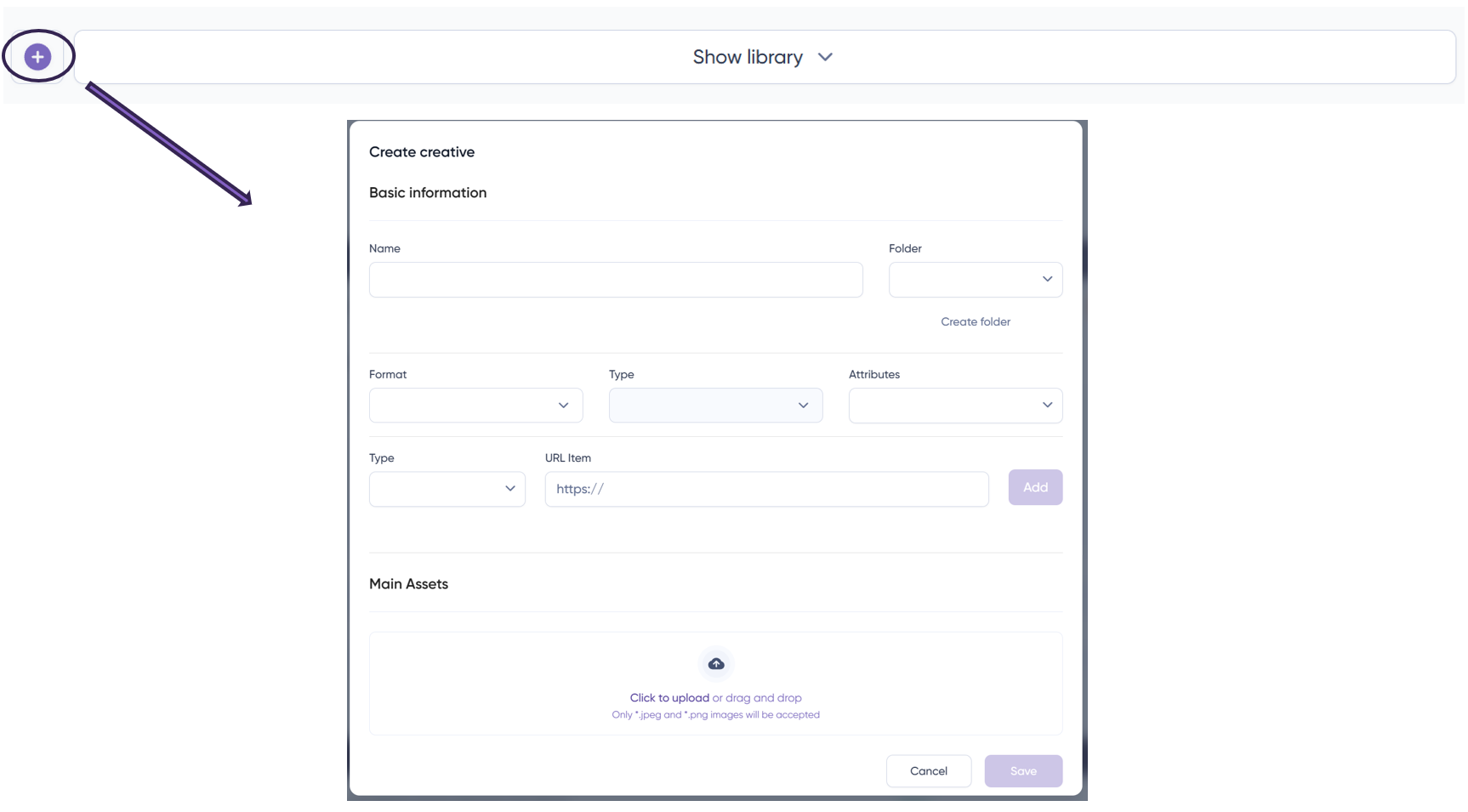
Or you can choose to upload them directly from the line. The only limitation is that creatives can only be uploaded individually, one at a time if you want them named differently from each other. If not, then you can upload several creatives in bulk, but the name for all of them will be the same.
Bids
In this section, you’re able to designate the bid for all creatives, a point of uncertainty for many. Determining the bid is straightforward—it hinges on your objectives and the strategy you’ve outlined.

You can opt for our suggested bid, tailored to the creative type and country you’re targeting. Alternatively, for a bid aligned more precisely with your strategy, navigate to the ‘Availability’ section. There, you can filter by objectives to gauge the available volume and the anticipated average price.
- Is it possible to change the bid for all the creatives added?
It is possible. You simply select ‘Global max bid’, filter (if necessary) the creatives you want to change the bid for, and simply click: