
Creatives
This section is dedicated to uploading creatives. Before uploading, we must go to the Folders list tab and create a folder. This way, we will have creatives grouped per campaign, and it will be easy to find them according to their folders.

Folders – Here is where we will create a dedicated folder for the campaign. The folder does not have to be created for a specific campaign; it can be used for several ones.
The utility of having the folders is to keep the materials grouped and organized.
In case you have several accounts available on the platform, keep in mind that when you create a folder, it will be assigned to an account, and once created, that folder can only be used in that specific account, and cannot be modified to assign it to another one.
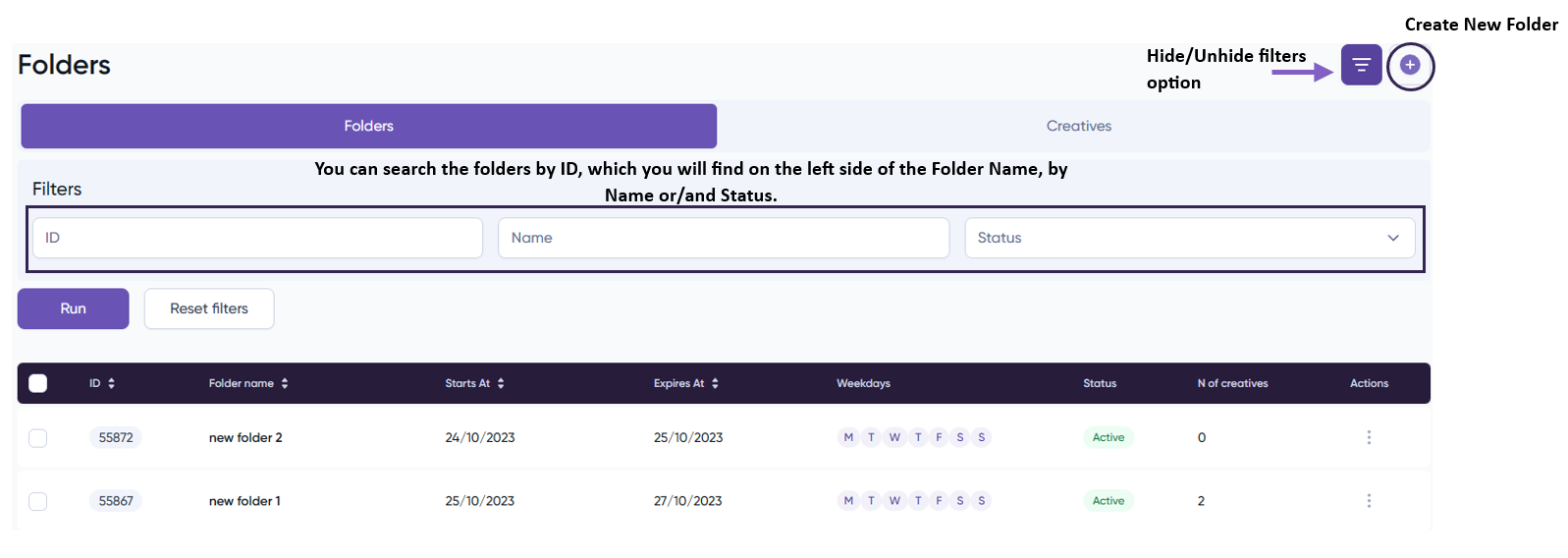
In addition, it has the advantage of scheduling when you want to pause a set of creatives (folder) and/or what days of the week you want it to deliver.
If nothing is selected, it will automatically set to ‘Unlimited’.
Once the folder has been created, we proceed to the ‘Creative‘ section.
There are two different ways to upload a creative:
Bulk
In this option, you can efficiently upload multiple creatives of the same type. To begin, download the template. Once downloaded, select the tab corresponding to the creatives you intend to upload.

For best use, we recommend extracting the specific tab you would use into a single file.
After you’ve downloaded the template, simply complete the necessary information. Some cells, like ‘click tracking,’ can remain empty as they are specific to particular campaigns.
Important Note: The 'filename' has to be exactly the name of the creative. If for example the file name is test_astrad01.png or test_astrad02.jpg, you must add it exactly as it is with .png and .jpg etc.
Once all the information is filled in, save the file and proceed to upload the creatives. Keep in mind that not all creative types can be bulk uploaded. If you don’t find the bulk upload option on the template, then it will mean that you’ll need to upload them individually.
Individually
In this section, you can upload individual creatives, but also with a different bulk option.
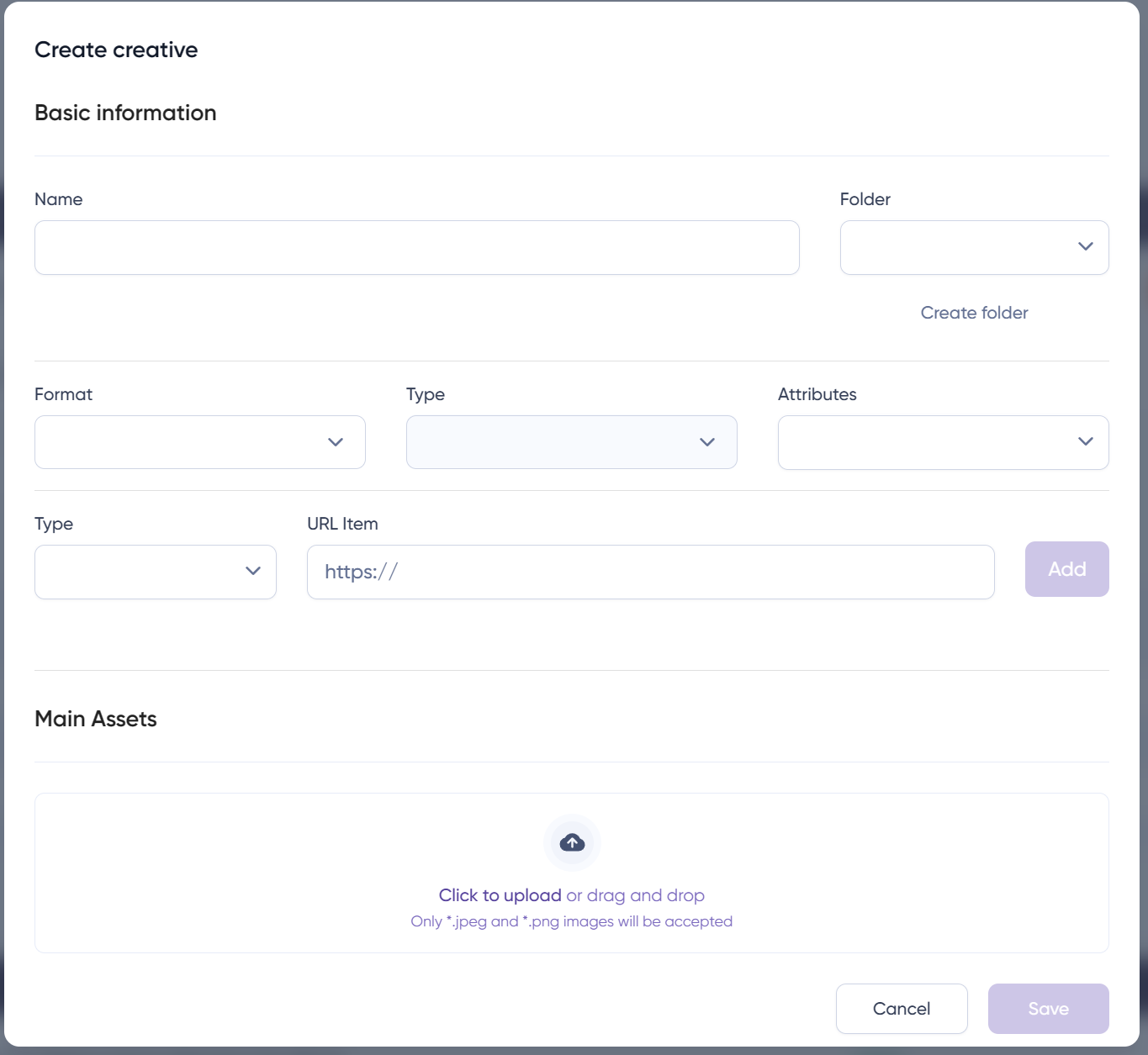
After filling in the necessary details:
- Go to the ‘Click to upload,’ and a pop-up window will open.
- Choose the creatives.
- Drag and drop them.
What is the difference between uploading bulk via a template and this option?

The distinction lies in the template option, where you can allocate individual impression pixels and click URLs to each creative. However, in this alternative, you can upload multiple creatives simultaneously, but they will share a single impression pixel and click URL. Additionally, all these creatives will have a unified name.
Basic Creative information
Here we leave you the basic requirements of the creatives:
- Ad formats: Banner, Java script Tag, MRAID 1 or 2, Native, Native Video, MRAID Video, VAST Video, VAS Audio, VPAID JS, VPAID Flash
- Ad size: choose from 320×50, 320×480, 300×250, 480×320, 828×90, 868×1024, 1024×868
- Creative attribute [optional]
- Click URL
- Impression pixels [optional]
- Image
Native format (display or video) has more specific requirements:
- Title: 25 characters max.
- Description: 100 characters max.
- Call to Action: 15 characters max. We strongly recommend short, on word calls to action, as longer text may be truncated. If not specified, it will default to ‘Install’.
- Icon image: 80×80 (recommended file size < 15 KB)
- Main image: 1200×628 (recommended file size < 100 KB for phones and < 150 KB for tablets).
- Star rating
For Native video, you must provide the Native specifications, the VAST tag, and video duration. You can identify supported exchanges in the “Availability” section under ad size = native and is video = yes. Additionally, make sure to choose “Without Attribute” in the Creative Attribute as it is a mandatory selection.
Placeholders – Macros
Macros are critical in tracking, reporting, and optimizing ad campaigns. Also known as “placeholders,” they are dynamic variables used in tracking URLs or ad tags to capture and pass specific information between different platforms and systems. They enable precise measurement, attribution, and reporting of key campaign metrics.
 You can find them when uploading creatives, in the top right corner.
If you have any issues or doubts about what to use, don’t hesitate to get in touch with your account manager in charge.


