
Targeting
Targeting focuses on the strategy that you want to set within the line.
Geolocation
There are many ways to select your Geotargeting:
- Country
- City
- Location lists
- Region lists
- Zip code lists
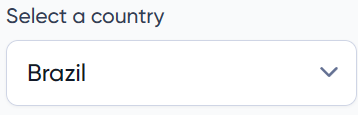
Select the target country for the campaign –>
Please note that only one country can be selected per line. Therefore, if you have the same strategy but want to serve in another country. We recommend cloning the line, renaming it and changing to the desired country.
You can target the whole country, or you can target more specific, like a city, or a geolocated list (which should be previously uploaded in ‘Assets > Geolocation’).
If you want to target specific cities, add them to the list on the right side. You can use this list as a to allowlist or denylist. The same goes for location, region or zip code lists.
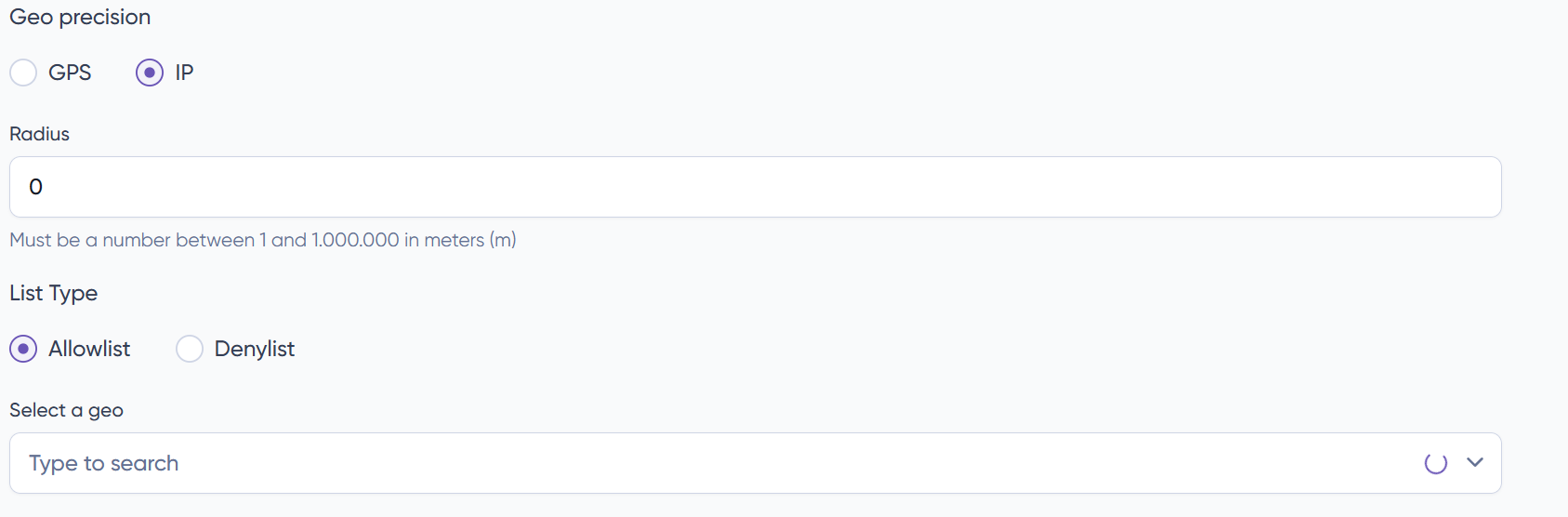
Alternatively, you can choose the hyper-local mode, to just impact users around a radius (in meters) from a list of locations. As shown in the screenshot below.
Using this option, you can select the geo precision:
-
- GPS: You will use only requests via latitude and longitude. This option is more accurate.
- IP: You can use IP to get the location. It is less accurate. However, you will get more volume.
Device
This feature enables you to choose your target operating systems (iOS, Android, and Windows) and device types (smartphone, tablet, desktop), as well as options for targeting Connected TV and Set Top Box.
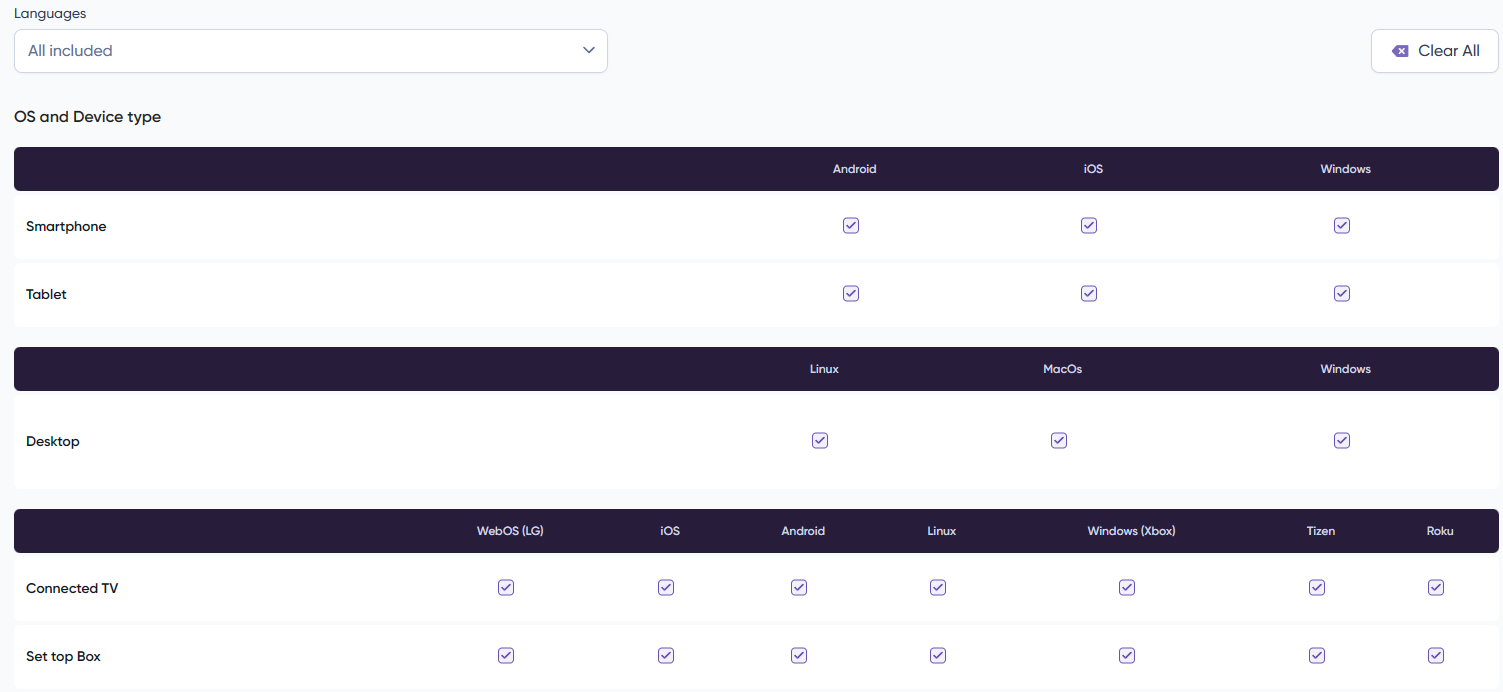
Moreover, we have an option where we can select to target specific OS versions (by default all versions are targeted).

You can target by Device Model or Device Brand using either a Whitelist or Blacklist.
Frequency Capping
Frequency capping limits how often a specific ad is shown to an individual user within a certain timeframe. So here, you can add the frequency capping you require.
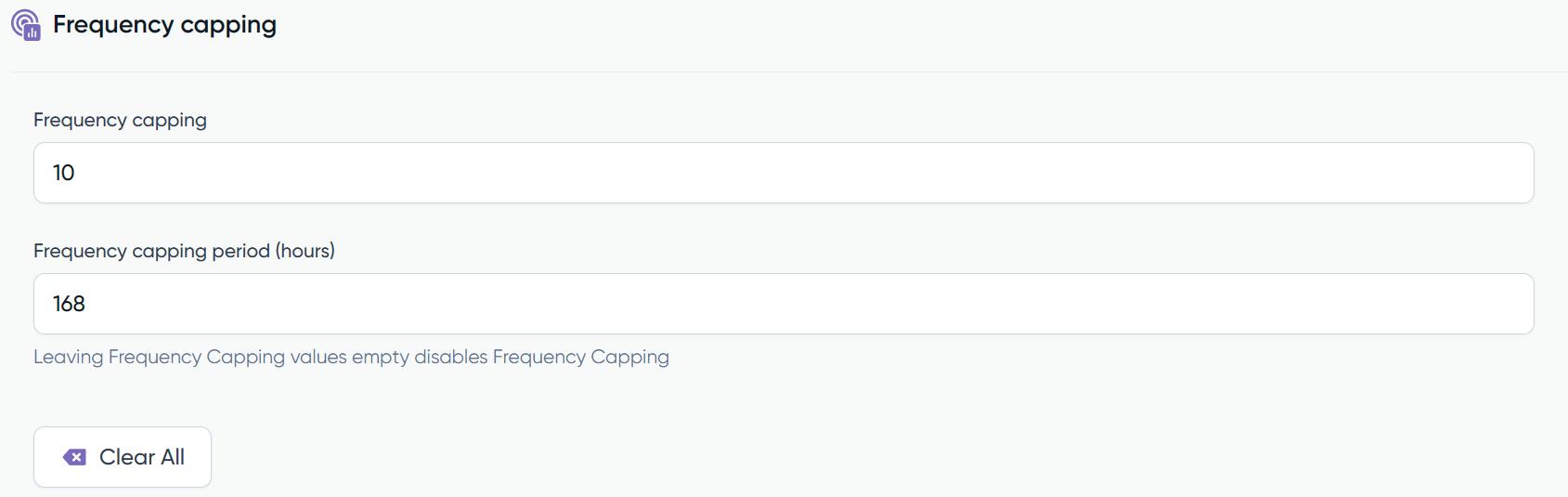
[Please, note that it is not required to add it at the campaign level. But if you have a frequency limit added to the lines, but also to the base campaign, the one that will take effect is the one from the base campaign.]
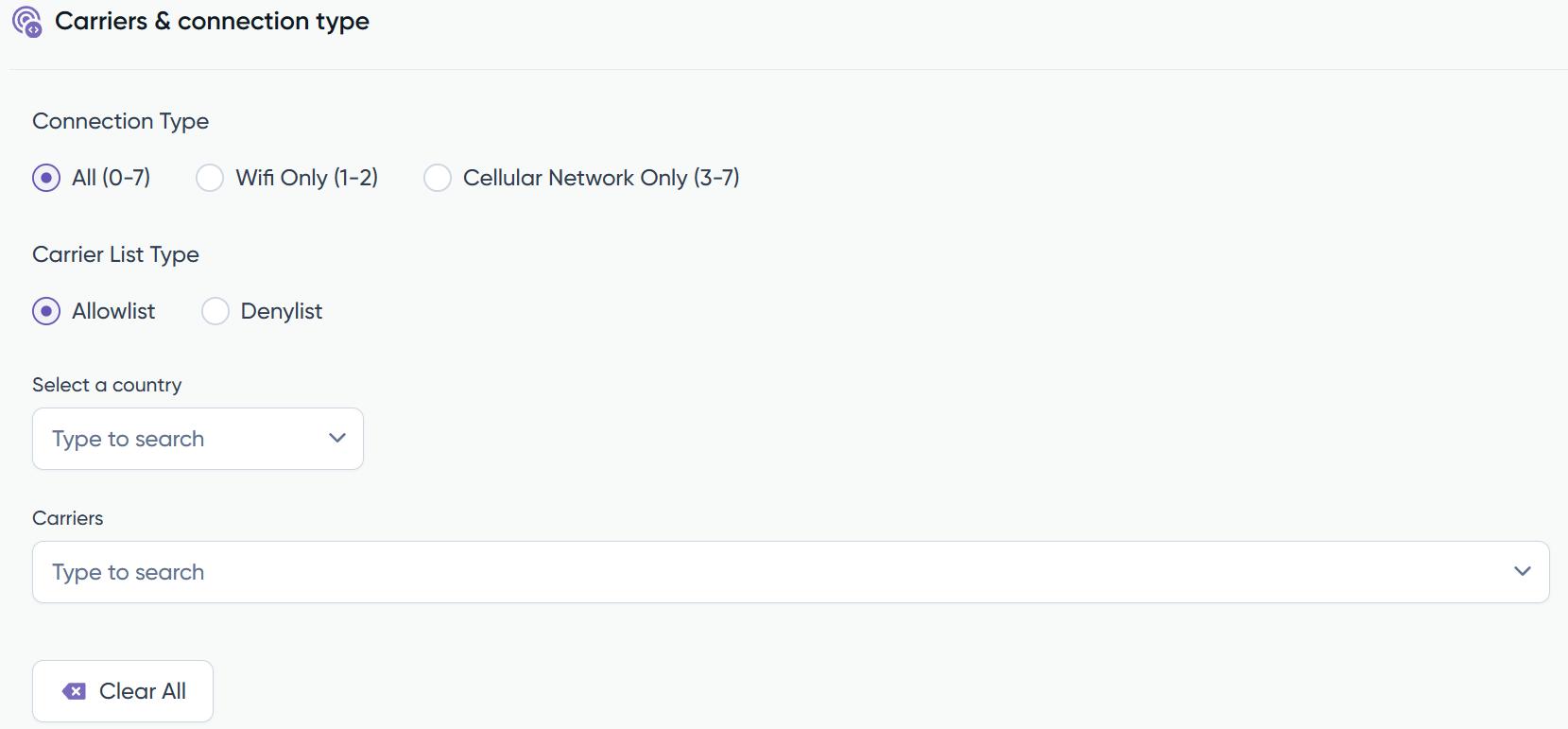
Carriers and Connection type
Within this section, you have the option to choose the preferred connection type as well as the specific carrier you wish the campaign to target.Carriers can be whitelisted as well as blacklisted.
Device ID & Auction Type
Here you can select Device ID traffic and Auction type. Depending in what environment you will be delivering the line (In-App or m-Web) will allow you to select different options as indicated below:
Device ID restrictions filter only applies to In-App.

Only traffic with Device ID: We’ll bid on these requests with the device id. (Not all the requests Astrad receives from the exchanges have device ids.)
Only traffic with a Device ID can be shared with third parties: Some requests with the Device ID cannot be shared with third parties. There is a field inside the requests called ‘do not track.’
Only traffic with raw Device ID: The Device ID that comes in the request is encoded with SHA1, and sometimes, not always, it is also encoded in RAW.
Finally, you have the possibility to select the ‘Auction type’:
First-Price Auction: The highest bidder wins and pays the amount they bid.
Second-Price Auction: The highest bidder wins but pays the amount of the second-highest bid.
If you don’t select anything, by default both will be selected.
Category
Targeting categories can be selected following the IAB standard.
IP Traffic Segments
Here you can select the lists previously uploaded in ‘Assets’.


